Exporting data
MMS is a database full of information on RAS members but sometimes you need to be able to get that information out to use in other places, that is why MMS has an export function to allow you to extract member data in a CSV file.
Understanding exporting functionality
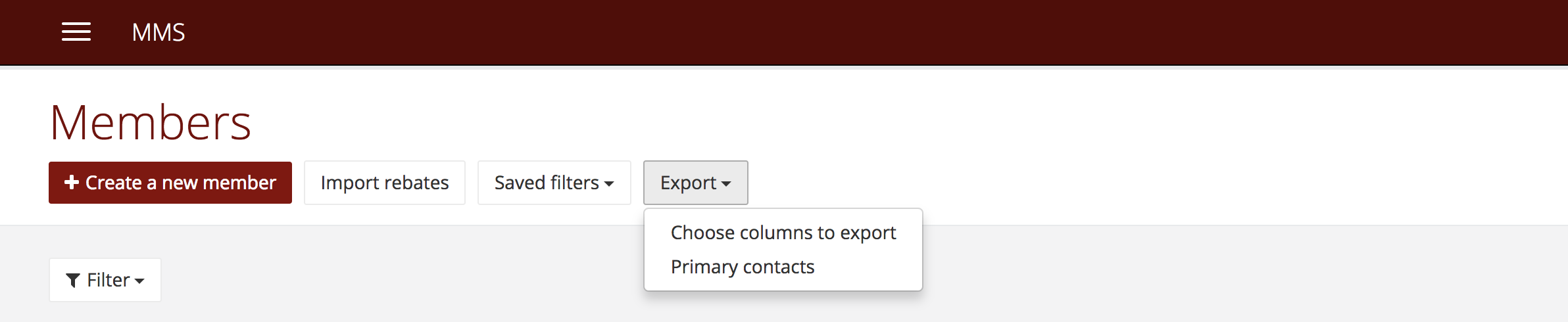
There are two types of exports you can perform in MMS;
- Default export of filtered members and specific columns.
- A member's primary contacts.
 Default export
 Default export
- Login to MMS.
- Navigate to the members model.
- Filter the data to select the members you want to export. To do this you can either set the filter settings you require e.g. you might want to filter on all active members;
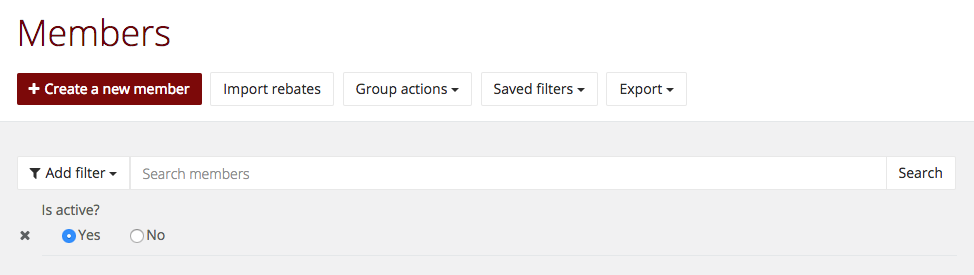 OR select a saved filter.
 - Then select export > choose columns to export and check those you would like to see in your CSV export, then hit export.
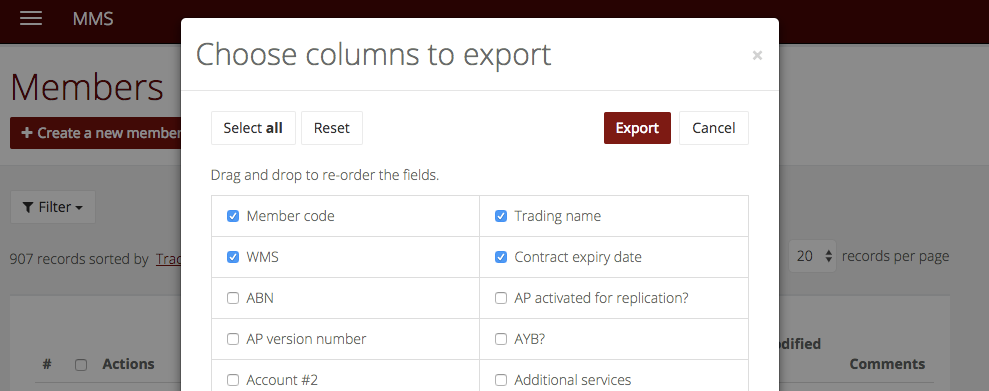
- A CSV file with all the data you selected will download to your computer.
 OR select a
Export a member's primary contacts
- Login to MMS.
- Navigate to the members model.
- Then select export > primary contacts.
- A CSV file will download to your computer.
Note: You can only export primary contact for all members at this stage, it will not work with filters or checking specific members.