Using filters
In MMS and RASNET there are a range of filters that can be used to filter records, like member records.
There are three different types of filters;
- Partial match filters that work by matching the search string you provide, anywhere within a word. This is how the search bar filter works.
- Exact match filters that give you a set range of options to select from. This is how most of the filters work.
- Range filters which allow you to select a range within which you would like to search, like a date range.
Getting the most out of filters
Here are some tips to ensure you get the most out of filters in general;
- The more filters you add the more refined a search becomes. Filters act on an AND, rather than OR basis, for example here is a RM/BDM search by region. It filters by RM and by region to return the most accurate result. Only records that have both an RM matching David Mathewson and a Region matching 301 VIC Metro will be returned. Records that only have one or the other, won't be included in the results.
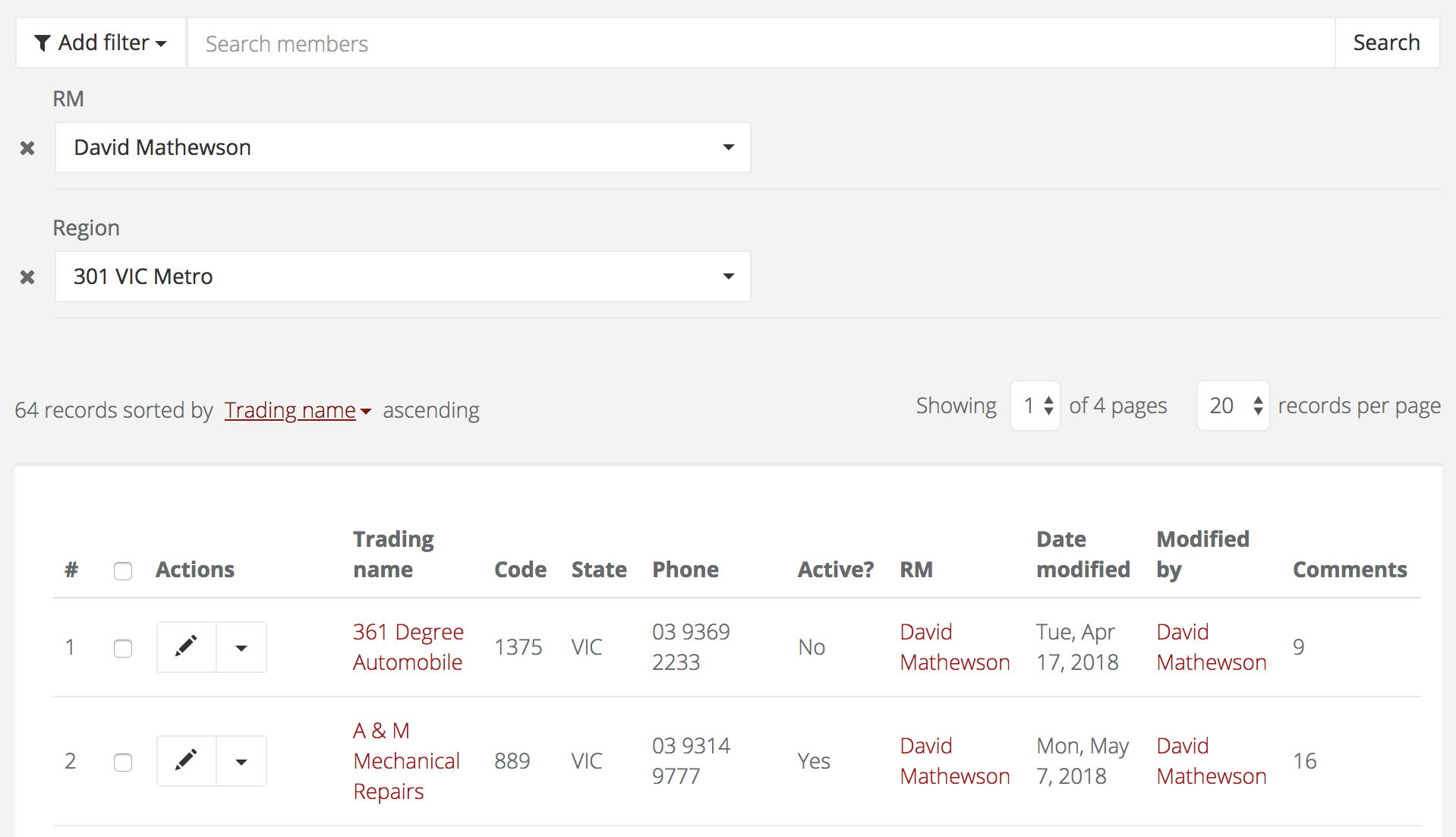
- The more filters you have, the fewer number of results will be returned. The trick is using as few filters as possible to get your desired result.
Partial match filters
The partial match filter works by matching the search string you provide, anywhere within a word.
Here is an example of what will and won't be returned when searching on the following records;
- All Point Automotive
- Allpoint Auto
- Point Turton Cars
- Dave's Motors
Results;
- Searching for "Allpoint" will return one result (Allpoint Auto)
- Searching for "All" will return two results (All Point Automotive, Allpoint Auto)
- Searching for "to" will return all records
- Searching for "Daves" will return zero results
- Searching for "Dave" will return one result (Dave's Motors)
Exact match filters
If you know the member code, searching on that will return the exact and only member with that code.

All other exact match filters give you set options to select from to filter on;

Range search filters
Below is an example of the date range filter on the date modified field, these results show all records modified between May 27 and May 30;

Can't find what you're looking for
- Select the `is active?` filter
- Select `any`
- Click `search`
Now you will be able to see all members in MMS, not just the active ones.
