Adding a post to the communications portal
This user guide will help you become familiar with authoring communication posts on the RASNET dashboard.
Goals
- Improve communication about what is happening in the program.
- Raise awareness around RAS happenings.
- Encourage team/member discussion.
Getting started
- Prepare your event. You will need a communication type (general, technical, tools, business), title and description at a minimum.
- Sign-in to RASNet.
- Navigate to the dashboard and on the communications centre select create.
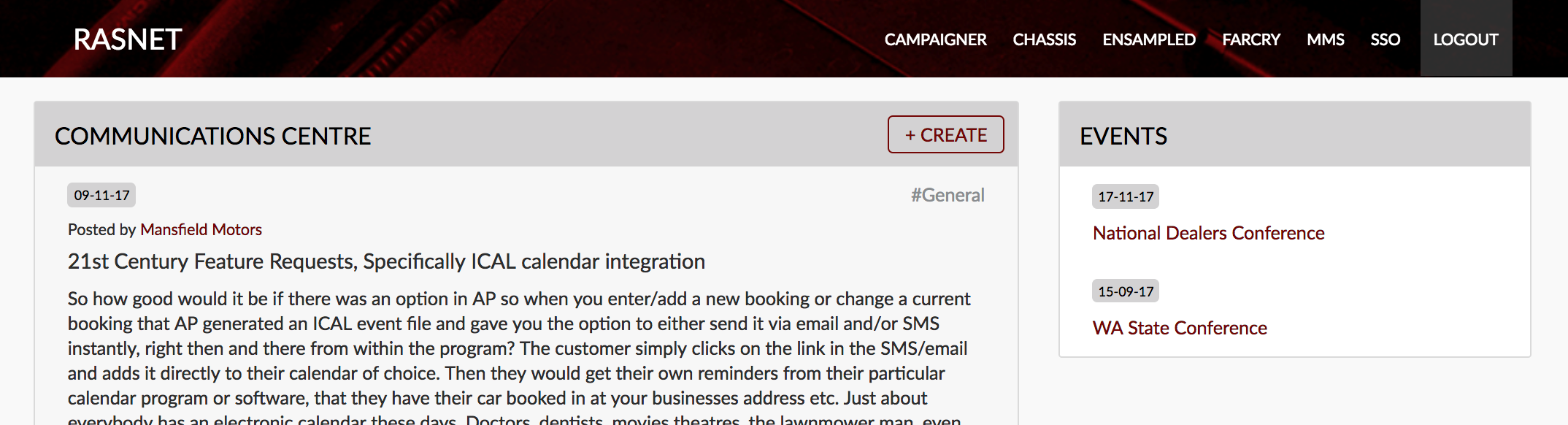
Create a communications post
- Select the communication type, this is required.
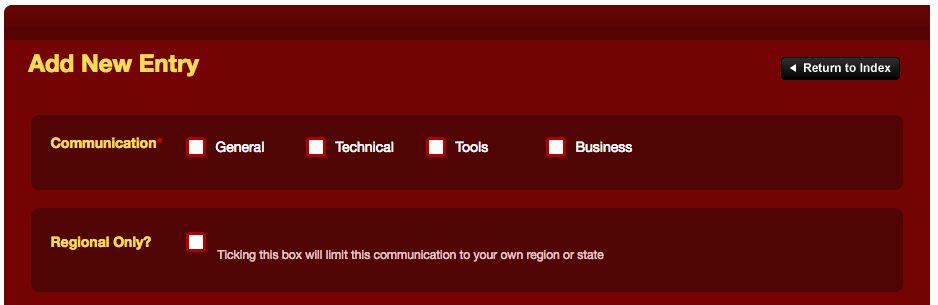
- If you only want the post to be shared with your region, select the regional only checkbox. If this isn't selected it will be shared with everyone.
- Add a title, this is required.
- Add a description, this is required and will be the first sentence on the dashboard. More of the description is shown on the dashboard for the newest post.
- If you are talking about a specific vehicle, add the make, model and any specifics (this is more relevant for members looking to share knowledge).
- Upload an image and/or file if you would like.
- Post the communication.
- Preview the event on the dashboard to ensure it looks correct.
- Preview the event on the communications portal to ensure it looks correct.
Best practices and tips
- Keep your event title short but catchy.
- Format the event content using the editor to make it look great. Add headings, format lists and add links where possible.
- Add an image where you can to add interest.