Meetings
MMS facilitates the creation, management, and reporting of meetings, along with automated NPS survey distribution upon meeting completion.
Additionally, MMS offers enhanced features such as bulk draft meeting creation for BDS, streamlined agenda template management, automated agenda population, calendar feed for BDS and participation status change notifications.
A range of features designed to streamline the entire meeting lifecycle, from creation to completion, while also improving communication and organization for both BDS and members has been introduced to the MMS and RASconnect.
The following outlines the typical FFB meeting life cycle:
- Meetings are created as draft meetings.
- Draft meetings are eventually updated to provide all required information, including setting the agenda to help set the mindset of the member.
- Draft meetings can be set to scheduled once all information is provided.
- Scheduled meeting notifications can be sent to members (optionally).
- Members RSVP on the RASconnect dashboard.
- A response will be automatically synced back to the BDS's calendar.
- Scheduled meetings, once conducted, are set to be completed.
- Once a meeting is marked as completed, an NPS survey is sent to the member.
- Once the NPS survey has been completed by the member, the meeting record is updated with the results of the NPS survey.
More reading
- Creating a draft meeting
- Creating a meeting agenda template in prismic
- Scheduling a meeting
- ICS file generation
- Calendar feed for BDS
- Completing a meeting
- Finding meetings
- Meeting types
- Prospect presentation meetings
- Reporting on meetings
- NPS surveys
- Member meeting widget
- Send meeting notification email
- Participation status change notifications
Creating a draft meeting
There are two ways to initiate the creation of a draft meeting in MMS:
- Meeting creation through FFB meeting model
- Meeting creation through members model action.
Meeting creation through FFB meetings model
- Log into MMS.
- Navigate to the FFB meetings model.
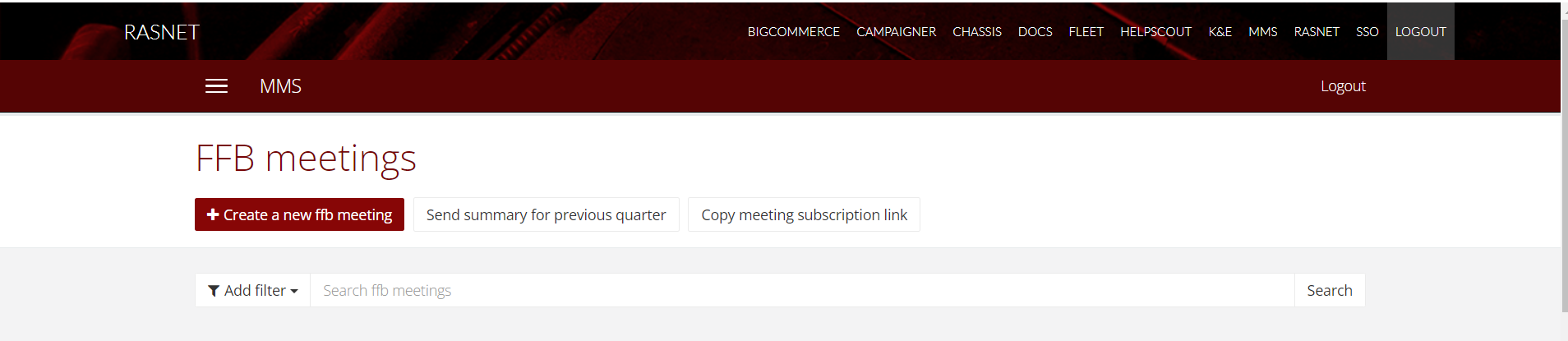
- Select + Create a new FFB meeting.
- Enter all the details you have about the meeting, ensuring you fill in all mandatory fields (those marked with an *). For the Agenda, provide as much information as possible.
Meeting creation through members model action
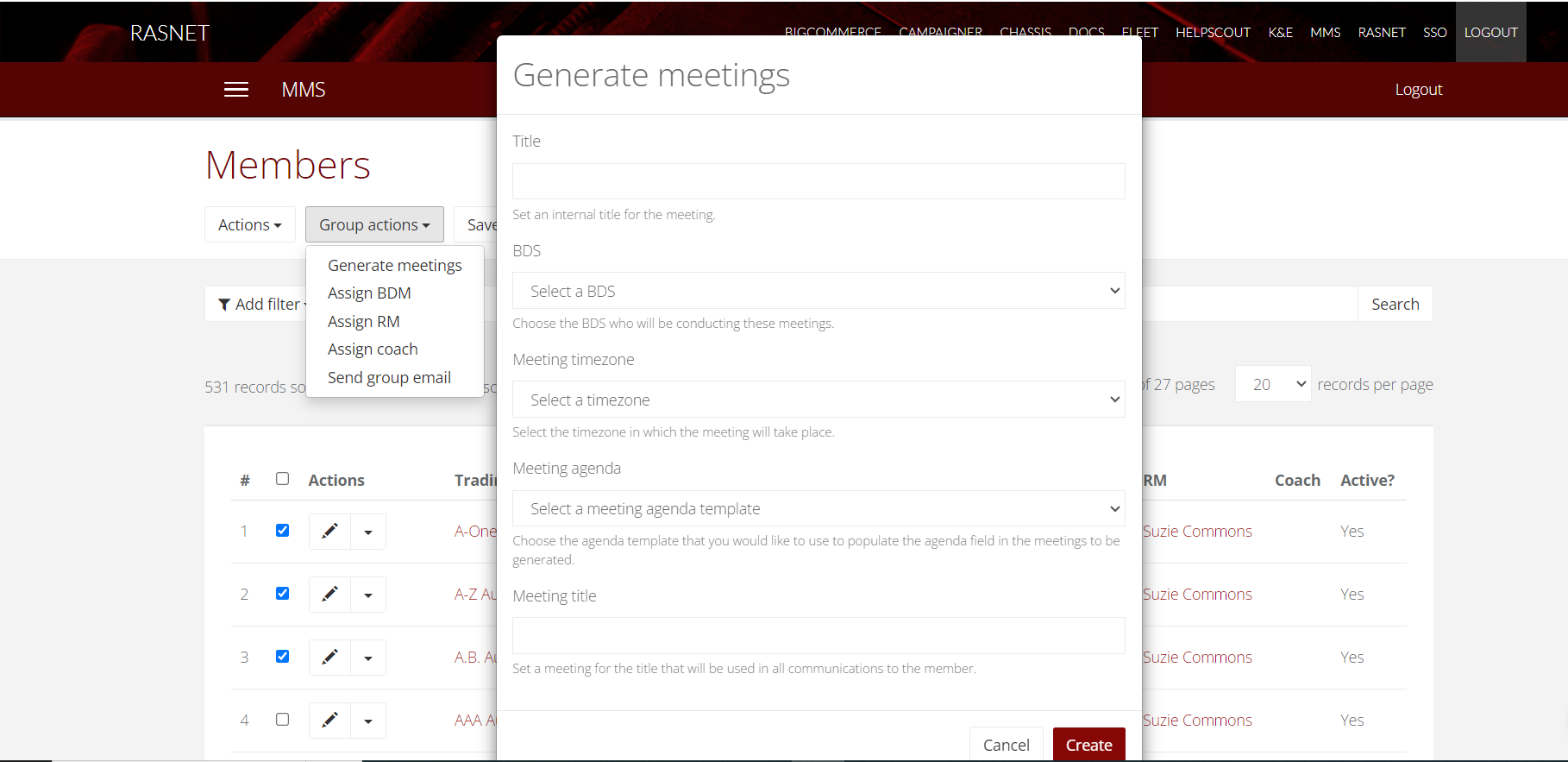
The model action on the member model enables BDS to efficiently generate draft meetings for all filtered members in a single action.
- Log into MMS.
- Navigate to the members model.
- Select the members you want to include in the meeting by checking the corresponding checkboxes next to their names.
- Use the
Generate meetingsgroup action. - Fill in the form submit.
- You are redirected to the meetings model index view.
Create a meeting agenda template in Prismic
A Prismic custom type (MMS meeting agenda template) is introduced to improve the preparation of meeting agendas.
Meeting content can be populated from a Prismic template or manually edited in the MMS meeting notes field.
Follow these steps to create meeting agenda template in Prismic
- Log into the Prismic Writing Room at https://rascontent.prismic.io/.
- Navigate to the document section.
- Click on the search option located in the top right-hand corner.
- Search for mms meeting agenda template.
- Open the new mms meeting agenda template.
- Click the Main tab.
- Click heading to enter heading.
- Click any (+) icon to select a slice to add.
- Click the all legacy Slices tab to select desired slices.
- You can customize the meeting agenda template by incorporating both title slices (for headings) and paragraph slices (for detailed content).
- Use the "Paragraph slice" option to include detailed content in your agenda, ensuring to follow the specified structure "{{bdsFirstName}}".
- Click Save and Publish the change if required.
Meeting agenda template added to automatically populate the agenda field in a meeting record based on the selected agenda template in Prismic.
Scheduling a meeting
Once you have a draft meeting that is ready to go to the next status:
- Log into MMS.
- Navigate to the FFB meetings model.
- Find the meeting you want to promote to the scheduled status.
- Click the Actions drop down for the meeting, and choose the Update meeting status to scheduled action.
Now that the meeting is marked as scheduled, you can send an email notification to the member about the meeting:
- Repeat the steps above to find the meeting you want to notify the member about.
- Click the Actions drop down for the meeting, and choose the Send meeting notification email action.
Any primary contact listed against the member will be notified about the meeting. If the meeting is of-type BDS - Business improvement process the BDS associated with the member will be CC'd on the email. If the meeting is of-type External coach the coach associated with the member will be CC'd on the email.
In order to send a meeting notification for the External coach meeting type, the member associated with the meeting must be assigned a coach. To do so, edit the member record in MMS and select the appropriate coach from the list.
ICS file generation (MMS)
An ICS file generation function is to generate ICS files for seamless calendar compatibility across various applications.
ICS file primarily supports Apple Calendar (iOS and macOS), Outlook (Windows, iOS, and Android), and Gmail (iOS and Android).
- Log into MMS.
- Navigate to the FFB meetings model.
- Open the scheduled meeting record.
- Use the record action
Download ICS file. - Open the downloaded file in your calendar program, primarily supporting.
Calendar Feed for BDS
BDS have the ability to subscribe to a calendar feed that displays all upcoming FFB meetings directly in the preferred calendar.
This feature would help BDS to stay organized and ensure never miss an important meeting.
- Log into MMS.
- Navigate to the FFB meetings model.
- Click on the "Copy meeting subscription link" on top of the page.
- Copy the unique link.
- Access your preferred calendar application and open your calendar app.
- Find the option to add a subscription.
- Enter the copied link into the appropriate field for subscribing to a calendar.
- Confirm the subscription.
Completing a meeting
Once you have conducted the meeting, it's time to note down the meeting record and actions.
- Log into MMS.
- Navigate to the FFB meetings model.
- Find the meeting you want to promote to the completed status.
- Click the Edit button (pencil icon) and fill out the Meeting record and Actions fields.
- Click the Save button to update the record.
- At the top of the meeting overview, click the Actions button and choose the Update meeting status to complete the record.
The meeting will now be appropriately recorded as complete in all reporting.
Finding meetings
There are two primary places you can view meetings:
- On the FFB meetings model page.
- On the overview for a particular member.
Member meetings list
To view all meetings for a particular member, view the member record and navigate to the meetings tab on their overview.
- Log into MMS.
- Navigate to the Members model.
- Use the filters to find the appropriate member.
- In the list of member records, click the trading name for the appropriate member.
- Scroll down to the detail tabs and choose the Meetings tab.
- All meetings assign to that meeting will appear in this list, and you can easily click on a meeting to view information about it.
FFB meetings list
To find a particular meeting, there are many filters that can help you. To get started:
- Log into MMS.
- Navigate to the FFB meetings model.
From there, all current meetings will be available and sorted by date modified, with the most recently modified meeting records at the top.
There are many filters you can use and combine to find the meetings you're after.
Created by
Choose from a list of RMs and BDS, and show all meetings that were created by those users.
Date created
Provide a date range, and show all meetings that were created within that date range.
Member/Prospect
Choose from a list of all active (non-test members)/ prospects and show all meetings that are assigned to that member/prospect.
Meeting date
Provide a date range, and show all meetings that were scheduled within that date range.
RM
Choose from a list of RMs, and show all meetings that are associated to a meeting that is associated to the select RMs.
Meeting status
Choose from a list of all statuses, and show all meetings that are assigned to those statuses.
Type
Choose from a list of all meeting types, and show all meetings that are assigned to those types.
Meeting types
There are three types of meetings:
- BDS - business improvement process
- External coach
- Presentation meeting
If "Ref type" is selected as "member"
- The available meeting types will include "BDS - Business improvement process" and "External coach".
- The "presentation meeting" type will not be available for selection.
If "Ref type" is selected as "prospect"
- The available meeting types will include "presentation meeting".
- Other meeting types like "BDS - Business improvement process" and "External coach" will not be available.
You can select the type of meeting when creating the meeting. You can also filter meetings by meeting type.

The choice of "Ref type" directly influences which meeting types can be selected for the particular meeting.
Prospect presentation meetings
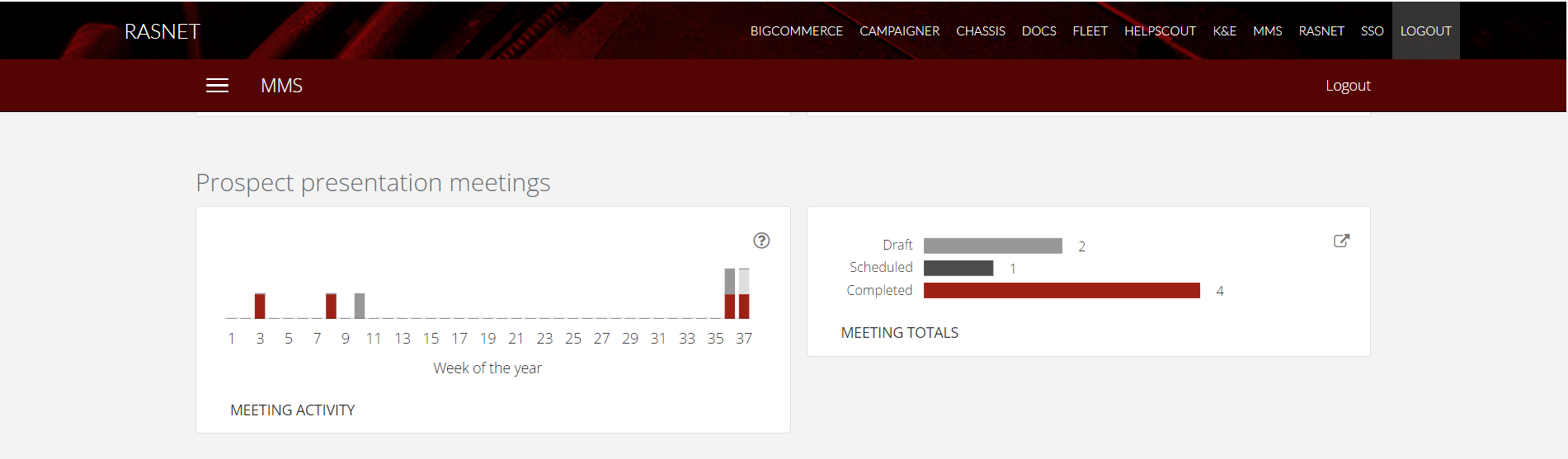
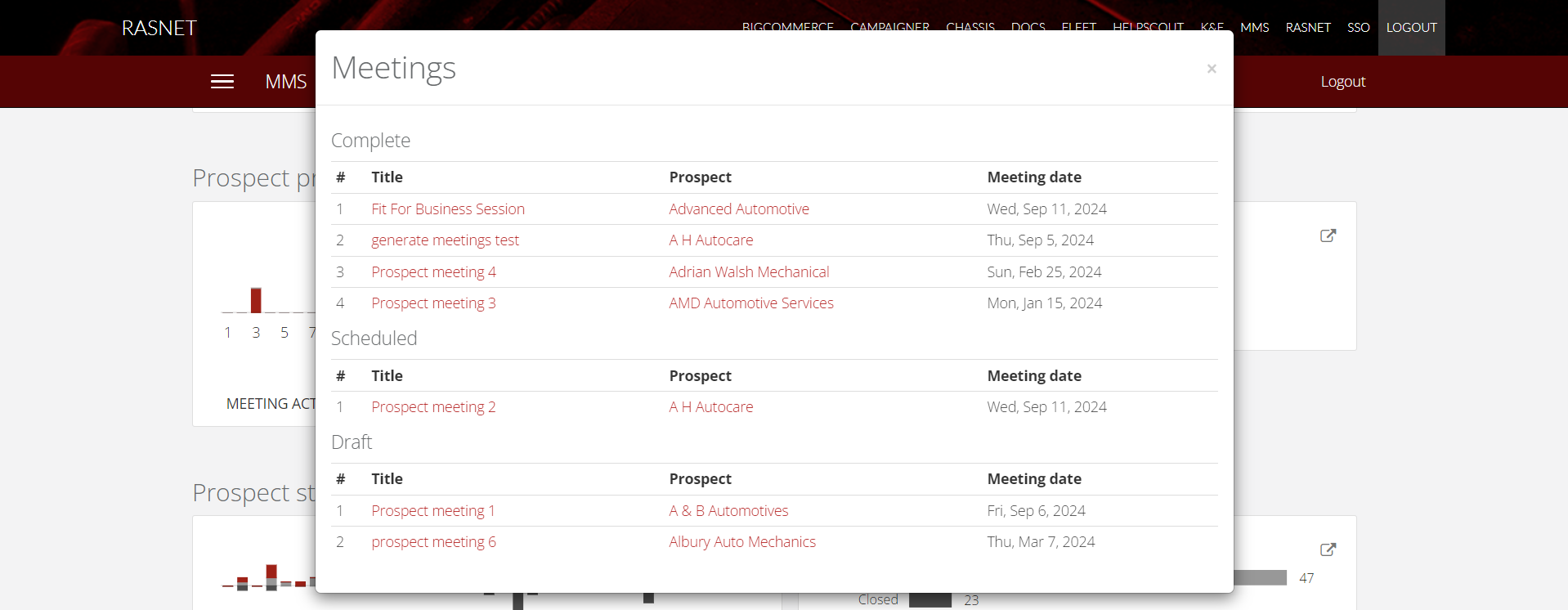
This MMS dashboard provides a snapshot of the scheduled, completed, and draft prospect presentation meetings. At a glance, you can see how the prospect presentation meeting activity is trending throughout the year.
- Log into MMS.
- Navigate to the MMS dashboard.
- Scroll down to the bottom and find the "Prospect Presentation Meeting" section.
- For a detailed breakdown of each meeting, click the arrow in the "Meeting Totals" section to view meeting details and associated prospect profiles.
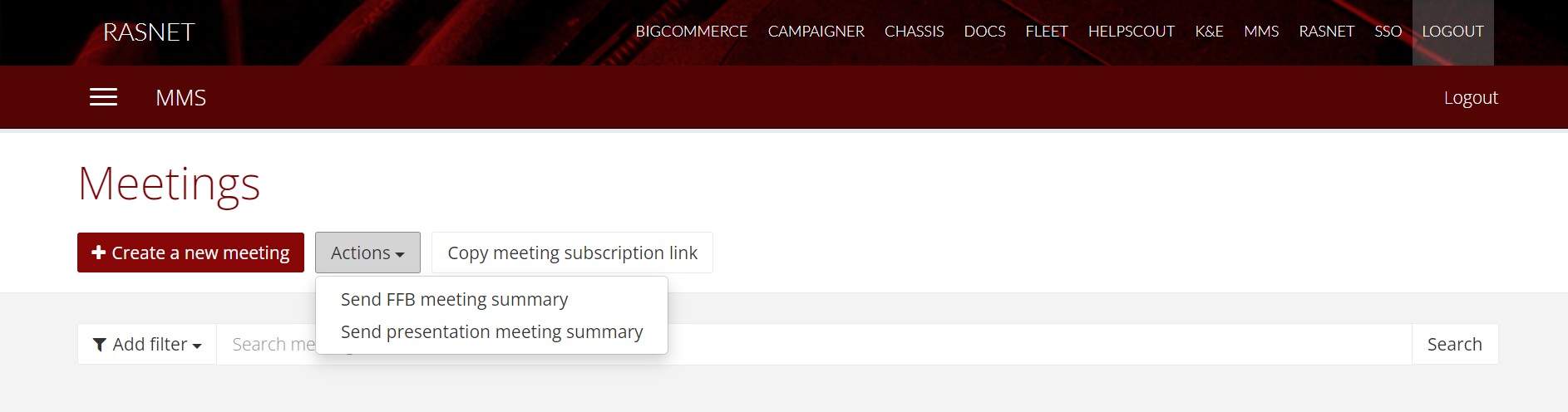
Send presentation meeting summary
- Log into MMS.
- Navigate to the meetings model.
- Open the list view.
- Use the action
Send presentation meeting summary. - The email will include the summary of the latest presentation meetings for each BDS, along with the following details:
- Number of active prospects
- Number of closed prospects
- Number of converted prospects
- Number of presentation meetings completed
- Number of presentation meetings scheduled
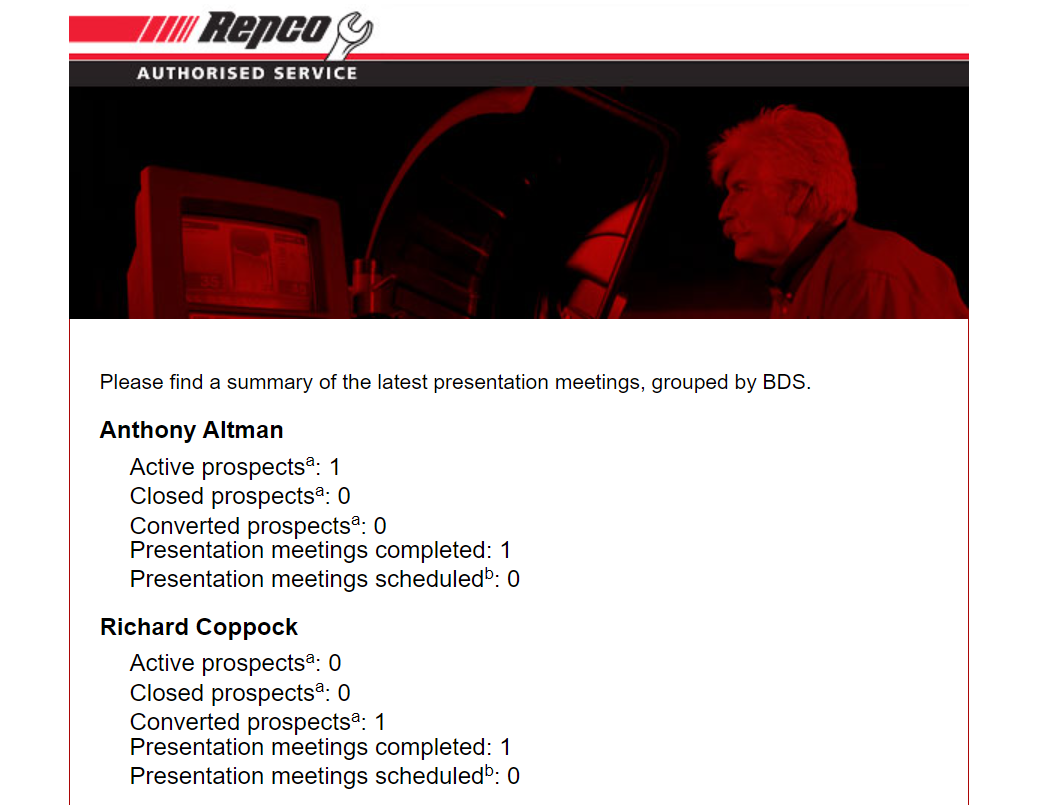
The summary of the latest presentation meeting for the previous month, along with the plans for the next three months, will be sent to the assigned BDS.
Reporting on meetings
The primary means to report on meetings is to use the MMS Dashboard.
There are two graphs related to meetings on the Dashboard in the Business improvement program statistics section.
The meeting activity graph shows scheduled and completed meetings, grouped by week. The meeting totals graph shows the number of draft, scheduled and completed meetings. You can also click anywhere on this graph to show all meetings included in the graph.
These graphs can be filtered by any of the filtering options on the dashboard including zone, RM/BDS and date range.
NPS surveys
NPS surveys are automatically sent to the member once a meeting is marked as completed.
The NPS survey asks the member following two questions:
- Q1. How satisfied are you with your business development meeting on {{date}}?
- Q2. How satisfied are you with the performance of your local Repco Store?
Along with providing an NPS score (1 - 10) for each question, the member has the opportunity to provide a comment.
Once the NPS survey is completed, the meeting record is updated with the results of the NPS survey.
Member Meeting Widget
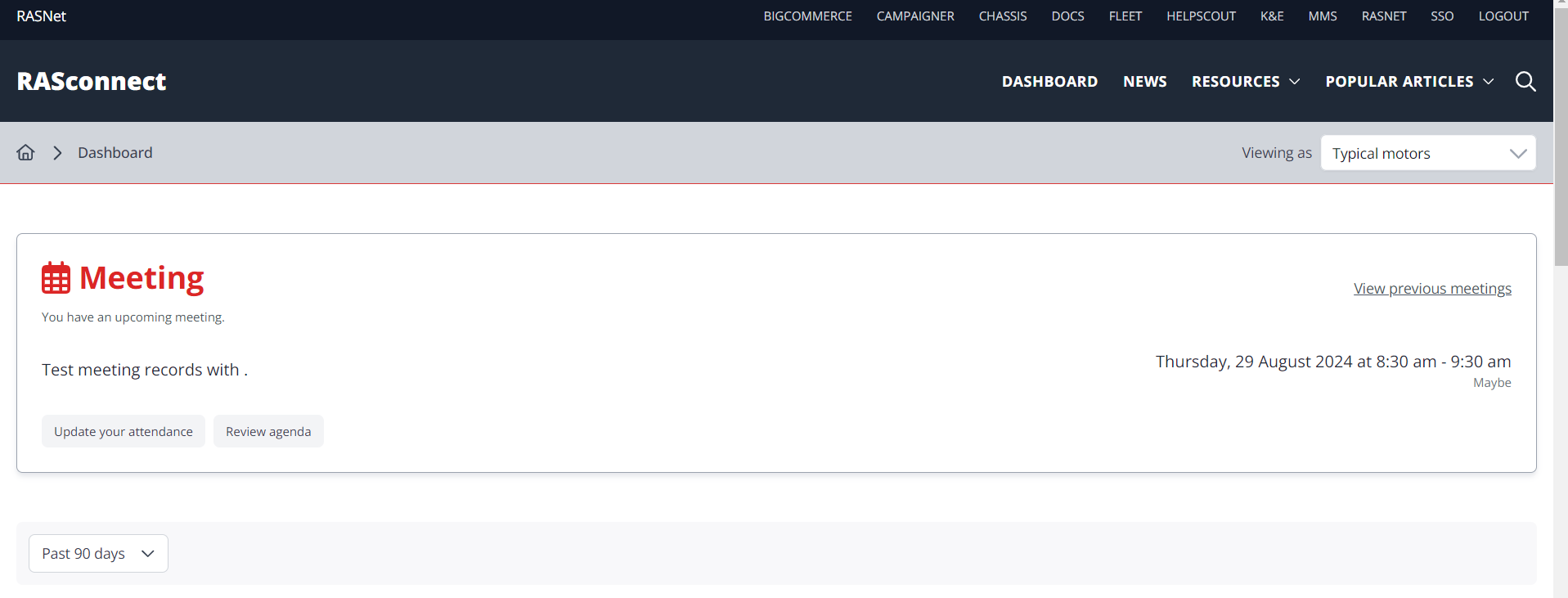
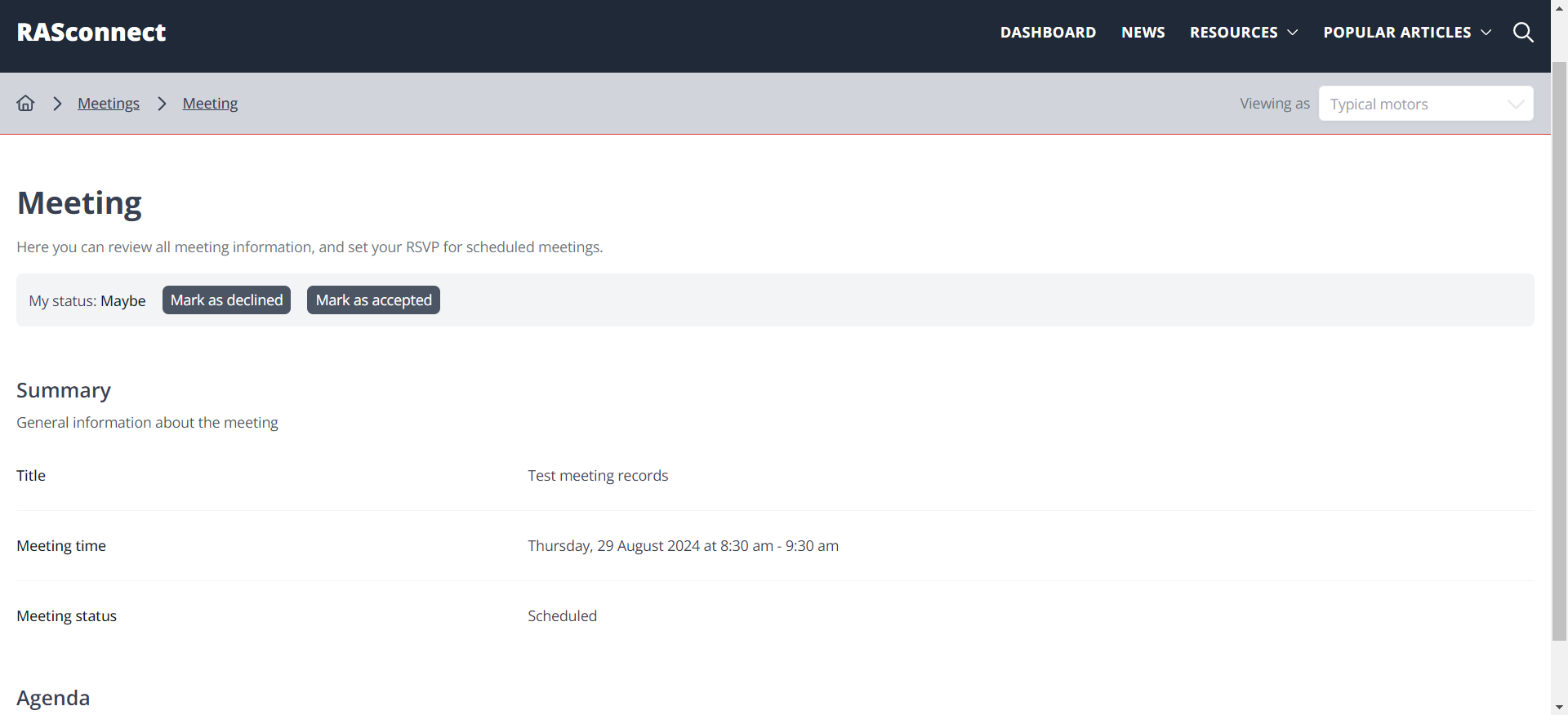
The member meeting widget serves as a quick reminder and provides essential information about an upcoming meeting, along with convenient actions to manage attendance and stay organized.
- Log into RASconnect.
- Navigate to the Member dashboard.
- On the dashboard, you'll see upcoming meeting widget.
- The key information displayed on the widget includes the meeting title, date and time, and current attendance status.
- The widget allows users to update their attendance, and review the agenda.
-
Members can mark/update their attendance status with three options:
Maybe: Indicates uncertainty about attending.
Accepted: Confirms attendance at the meeting.
Declined: Indicates they will not be attending.
- The marked status is then clearly displayed on the widget, providing a quick visual reference for both the member and potentially other relevant parties.
- Click "View previous meetings" to access a list of your past meetings.
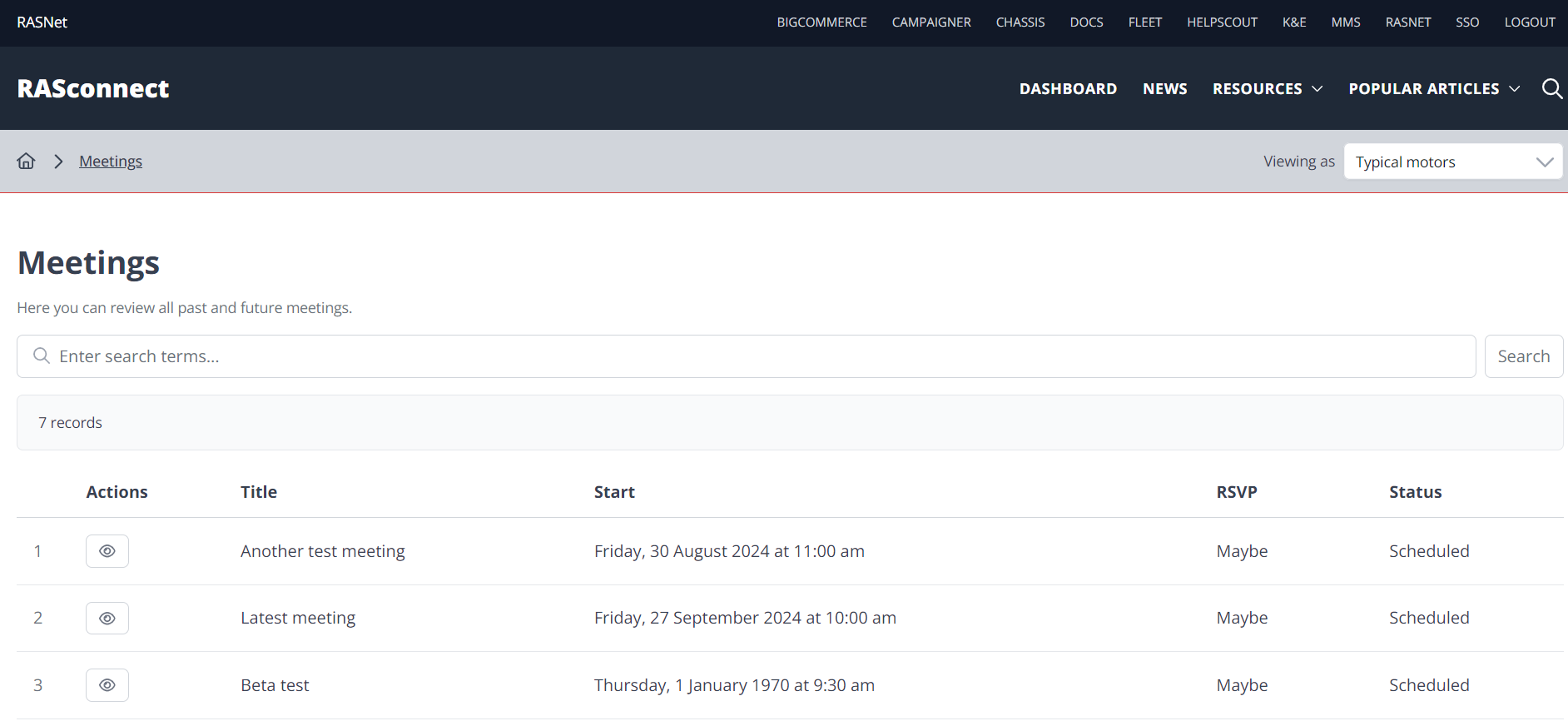
- Additionally, a meeting list view is added to the "My RAS" section.
Send meeting notification email
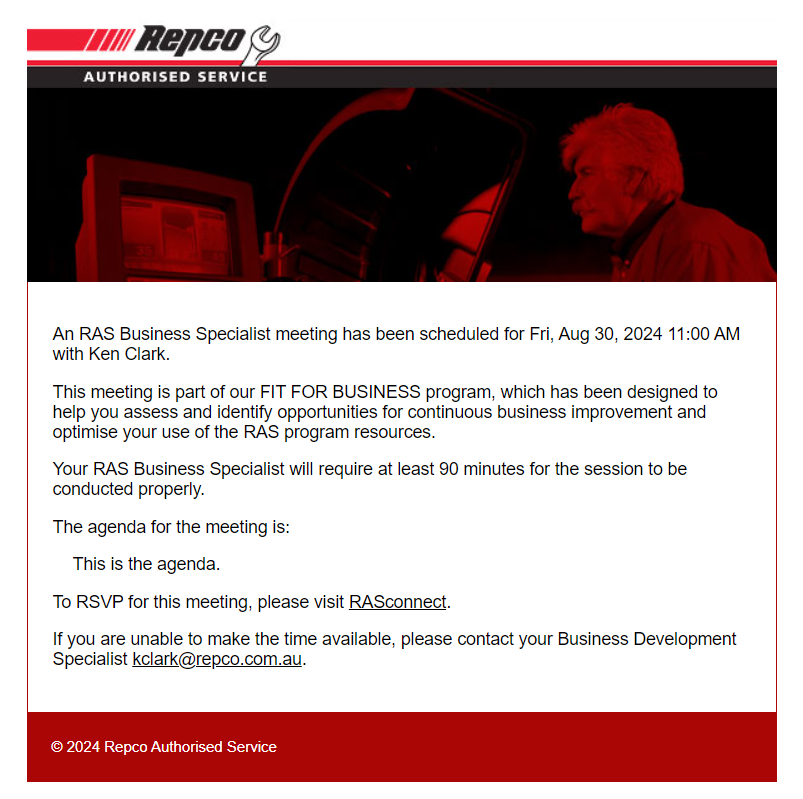
BDS can also send these email notifications through MMS.
The member will then receive an email notification for the meeting, and they can RSVP by clicking on the link within the email.
This link will direct them to their RASconnect dashboard to complete the RSVP process.
- Log into MMS.
- Navigate to the FFB meetings model.
- Find a meeting.
- Use the
Send meeting notification emailaction to send meeting updates to the particular member.
Participation status change notifications
This feature enhances communication and streamlines meeting management by promptly notifying BDS via email whenever a member updates their participation status for a meeting directly through the RASconnect dashboard. This ensures the BDS calendar stays accurate and up-to-date.
This real-time update enables BDS to stay informed about meeting attendance, facilitating effective planning and adjustments as needed.
- Members can respond directly through the RASconnect dashboard making it convenient to set their attendance for the meeting.
- Set their RSVP status (Accept, Decline, Maybe)
- Their response will be automatically synced back to the BDS's calendar.
ICS file primarily supporting Apple Calendar (iOS and macOS), Outlook (Windows, iOS, and Android), and Gmail (iOS and Android).