Multi-factor authentication
Enabling multi-factor authentication (MFA) for accessing sensitive applications will improve security as it adds an extra authentication step making the RAS systems harder to breach.
Goals
- Improve security of RAS applications.
- Ensure communication into sensitive apps is limited.
- Ensure authentication into sensitive apps is as strong as possible.
- Resetting MFA.
Who will need to use MFA
MFA-required users will be anyone from Repco, Idearium and the marketing support team. The members will not be able to use MFA.
What you will need to use MFA
To use MFA, you'll need to have a device with software that supports multi-factor authentication. The Repco mandated software is Microsoft Authenticator (although the solution also works with other solutions such as 1Password). We will only be supporting the use of Microsoft Authenticator.
Using MFA
You will be prompted to set up MFA when you log into any of the RAS apps if you have not set it up previously. Once you have set up MFA for one app (e.g. MMS) you will not have to set it up for other apps (e.g. RASNet).
If you are required to use MFA, you'll be required to provide a one-time token with every request.
- Visit the MMS log-in screen.
- Enter your username and password.
- Once authenticated you will be presented with the below screen which provides further steps to complete the set-up of MFA;
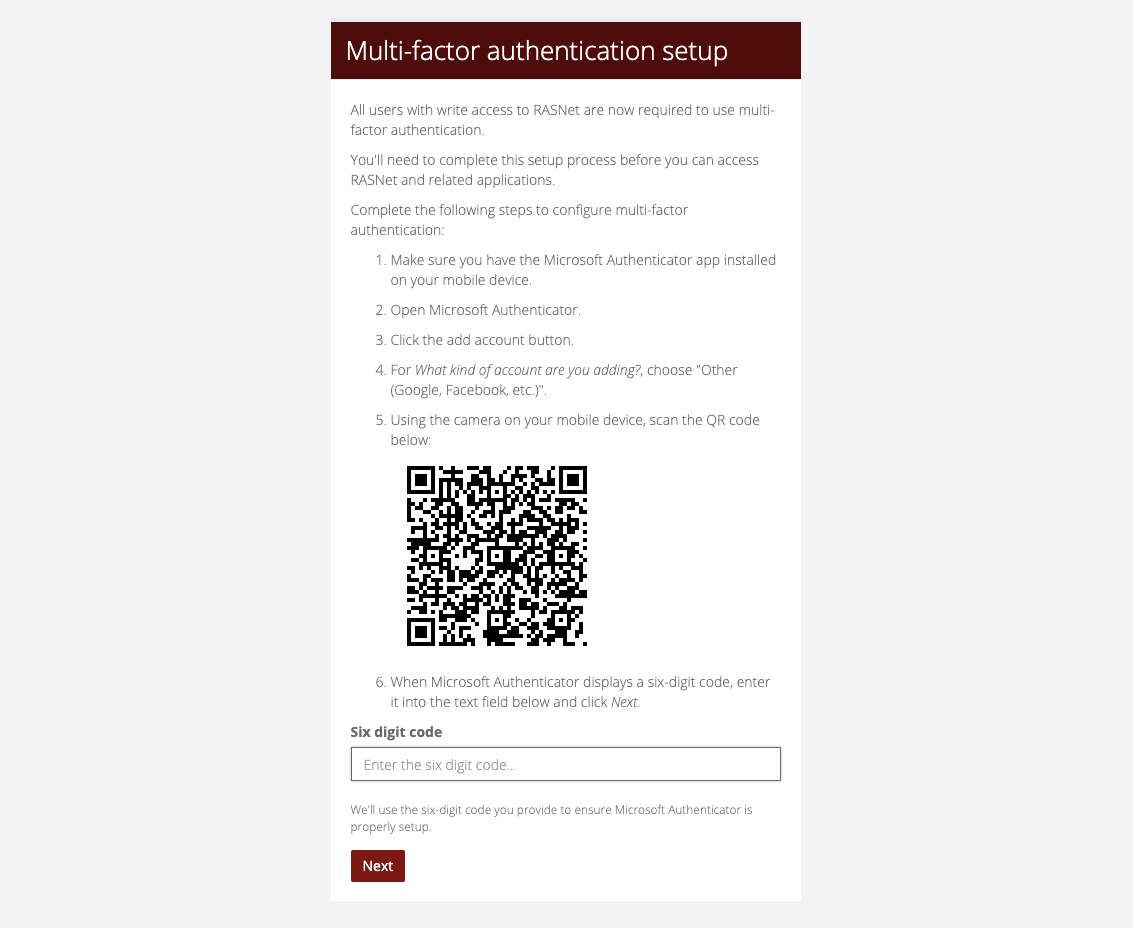
- Follow the steps provided on the screen and enter your six digit code from Microsoft Authenticator.
- You will be prompted to log in again once your MFA has been set up.

- From now on, every time you log in to a RAS application you will need to provide a six digit code from the authenticator app.
Resetting MFA
From time to time, you'll need to reset your MFA setup and start again. The most common reason is because you have a new phone.
To do this, you'll need to get support from Idearium. Email us at ras-support@idearium.io and request that your MFA be reset. We'll reset your MFA setup and let you know when it's complete.
The next you log into MMS with your username and password, you'll be prompted to setup MFA again. Follow the steps at Using MFA.