Member life cycle
All member data, from potential members to exiting members, is managed in the RAS member management system (MMS).
The following outlines the typical member life cycle.
- Potential members are created as prospects.
- Some prospects are closed. Some prospects are later reopened.
- Other prospects are converted to members, and spend many years in the program.
- Some members leave and their records are closed.
- Some members sell their business and the new owners retain membership, which is known as a rollover in MMS.
This life cycle is important to understand. Specifically, all members must first be created as potential members and converted to fully fledged members from there. This allows time for all of the offline preparation tasks such as contract signing, Repco account setup, etc.
It also provides a clear view the new prospect pipeline, and provides traceable and reportable breadcrumbs of a members journey through the program.
This document describes how to manage a member through the entire lifecycle.
Goals
- Create a prospect to start the documentation for a potential new member.
- Update a prospect through the sales process, through commenting and editing.
- Closing a prospect.
- Converting a prospect to a fully fledged member.
- Reviewing a member's status.
- Closing a member.
- Reopening a member.
- Rolling over a member.
Creating prospects
Start by gathering all of the mandatory information you'll need to create a new prospect;
- Trading name.
- Their local Repco store.
- Whom their RM would be.
- Their location details (suburb, state and postcode).
- Primary business email address.
- Primary business phone number.
- Key contact information (firstname, lastname, email, position within the business).
To enter a new prospect in MMS follow these steps;
- Login to MMS.
- Navigate to the Prospects model.
- Select + Create a new prospect.
- Enter all the details you have about the business, ensuring you fill all mandatory fields (marked with an *). Provide as much information as possible.
Commenting on prospects
A large part of managing prospects is updating them as they progress through the conversion process. At the bottom of each prospects overview page there is a space to add comments, these should be updated each time you make contact with a prospect or take any action to progress the relationship.
- Navigate to the Prospects model.
- Click on the prospect's trading name to see the overview page.
- Scroll to the Comments section and click Add comment, choosing a category and adding your comment.
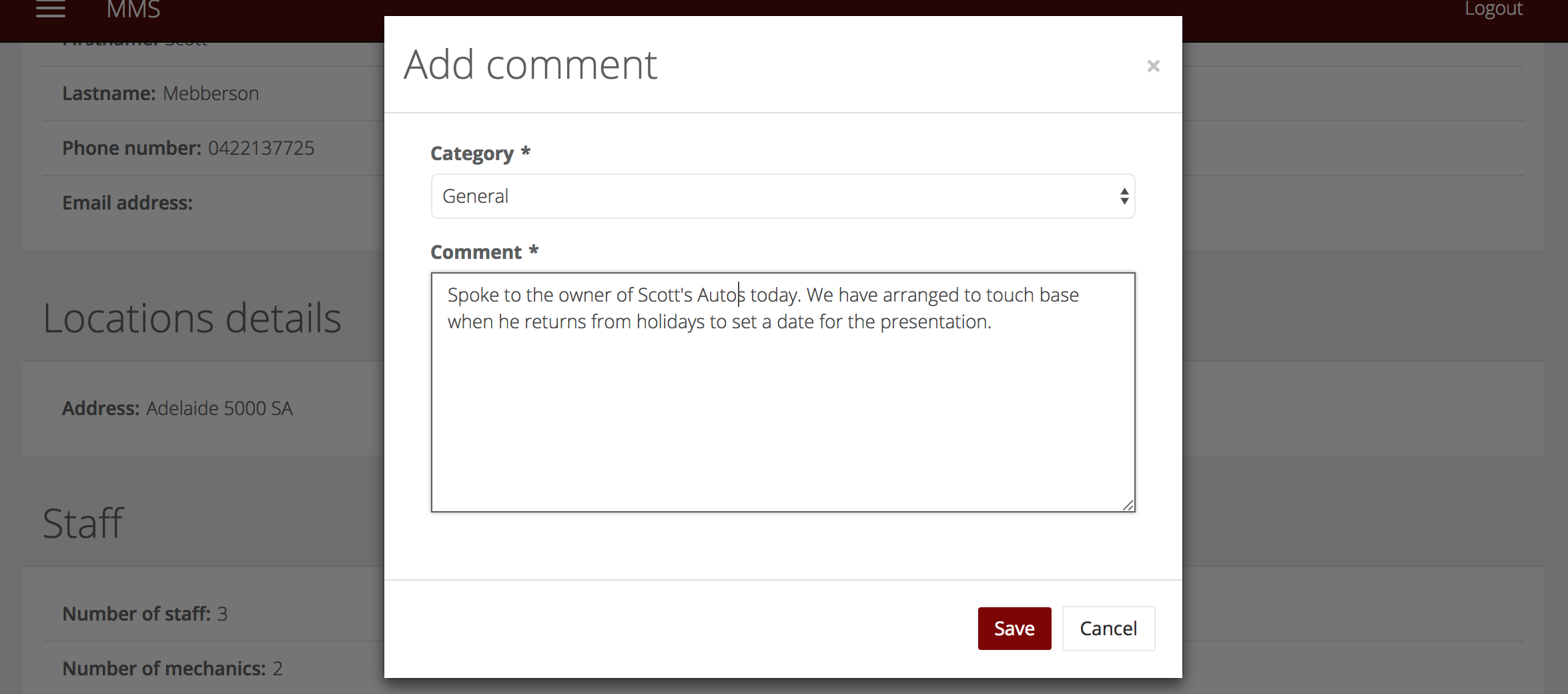
- The comment will save on the overview page, giving you a history of what activity has taken place against a prospect. You can also edit any comments you have written using the pencil icon.

Editing prospects
As the prospect progresses through the sales process, you'll have more information to apply to their record. To edit a prospect follow these steps:
- Navigate to the Prospects model.
- Find the prospect you wish to add information to.
- Click the Edit button (pencil icon).
- Update the information as much as possible and click Save.
Closing a prospect
If a prospect will not be joining RAS, you can close them;
- Navigate to the Prospects model.
- Find the member you wish to close.
- Click the down arrow next to the record and select Close prospect.

- You will be prompted to add a comment, it must be longer than 100 characters to ensure you give valuable information that can be used to improve the sales process in the future.
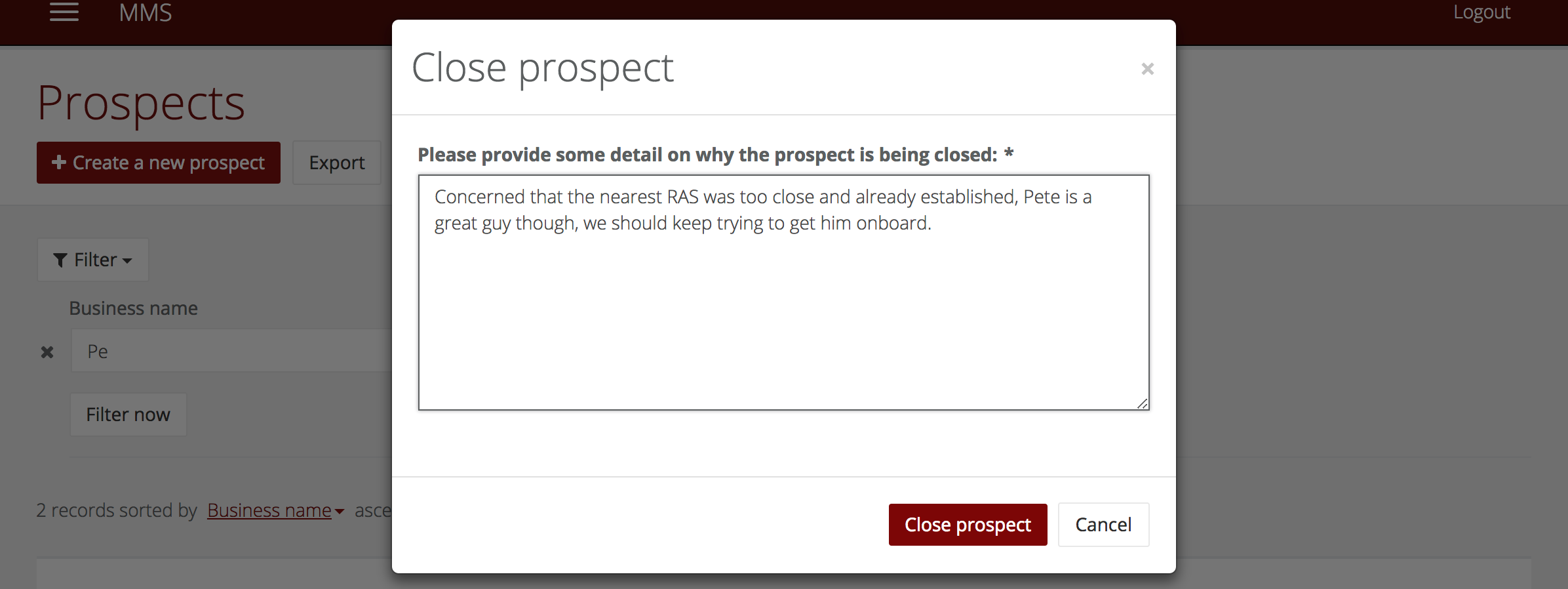
- Click the Close project button.
Reopening a prospect
From time to time, a prospect will reconsider and being to show interest in joining the program again. If this is the case, a prospect can be reopened, and should be, rather than creating a new prospect. To reopen a prospect;
- Navigate to the Prospects model.
- Find the member you wish to reopen.
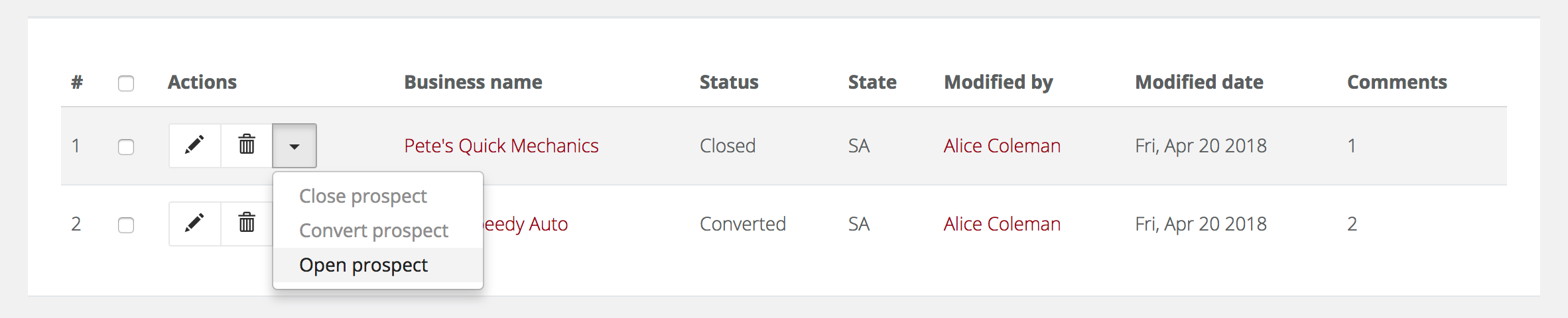
- Click the down arrow next to the record and select Open prospect. You are required to add a comment here too, although it doesn't have a minimum character requirement.
Converting a prospect
Once a prospect has decided to join RAS it is simple to convert them to a fully fledged member in MMS.
Start by collecting the mandatory information you'll need;
- The businesses registered legal name (and ABN).
- A password for the member.
- Contract start date.
- Member since date.
- Their subscription level and inclusions.
- Their street number and street name.
To convert a prospect to a member;
- Navigate to the Prospects model.
- Find the prospect you wish to convert to a member.
- Click the down arrow next to the record and select Convert prospect.

- A new member record for the prospect will be created. At this point, they're now a new member, and notifications are automatically sent to team supporting RAS notifying them there is a new member.
- The member will also receive a welcome email which they can use to learn their username, create a password for their account and sign in for the first time. You can more about this process in the Password management article.
- You will then be redirected to the new member's record for that prospect where you can add the rest of the details required to complete their member record.
Please be aware that if you cancel this screen, the member record will remain and will be left incomplete. - With the additional information provided click the Save button.
Member status
As part of the member exit process update there is now a status tab on the member overview to capture and report on status changes for members.
 Each status change is listed, and there might be multiple. The status changes includes the following information:
- Status from: This was the status before the change took place.
- Status to: This is the status after the change took place.
- Note: This is a note left by the user who actioned the change.
- Leave date: This is the date the change will actually take place to the member record.
- Exit reason: This is the reason chosen from a drop down list.
- Date changed: This is the date the user actioned the change.
- Process used: This is the process that was used to make the change.
There are multiple processes which can be used to action a status change:
- close-member: This action is initiated by the Close member record action.
- convert-prospect: This action is initiated by Converting a prospect to a member.
- open-member: This action is initiated by the Reopen member record action.
- rollover: This action is initiated by the Rollover record action.
Closing a member
From time to time, member's will leave the program for various reasons. When this happens, and the business is not being soled to new owners who wish to remain in the program, member records should be closed;
Please note: if a member is being sold to new owners who wish to remain in the program, you should follow the rollover process.
- Navigate to the Members model.
- Find the member you are closing.
- Click the dropdown arrow next to their record then select close member.
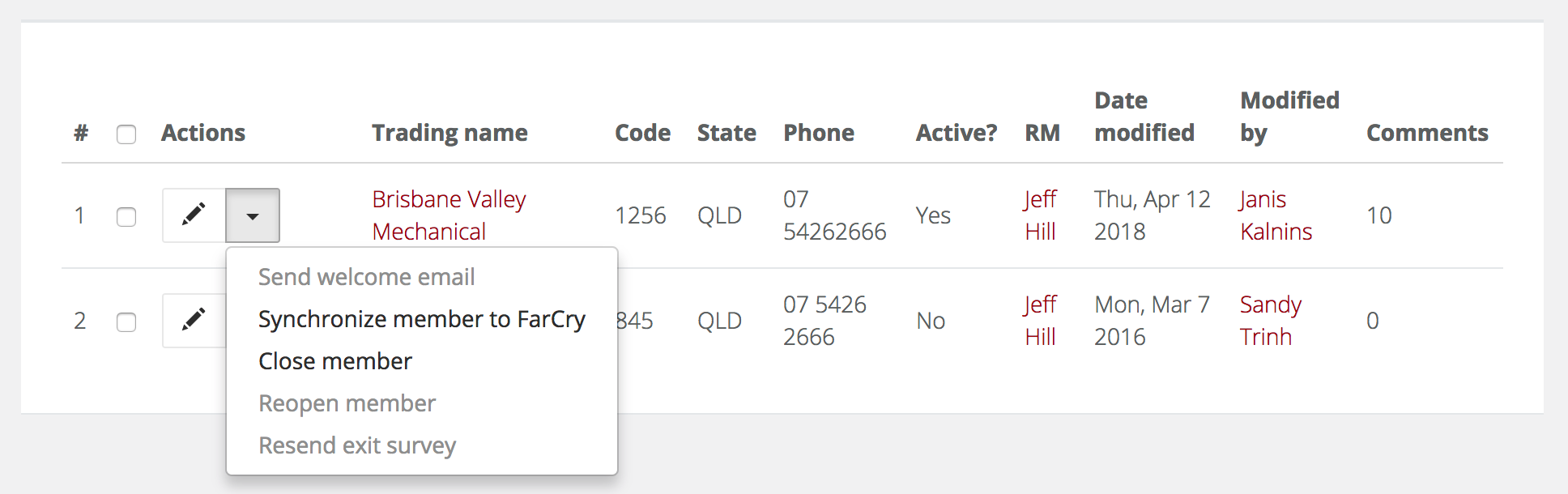
- You will now see the close member form;
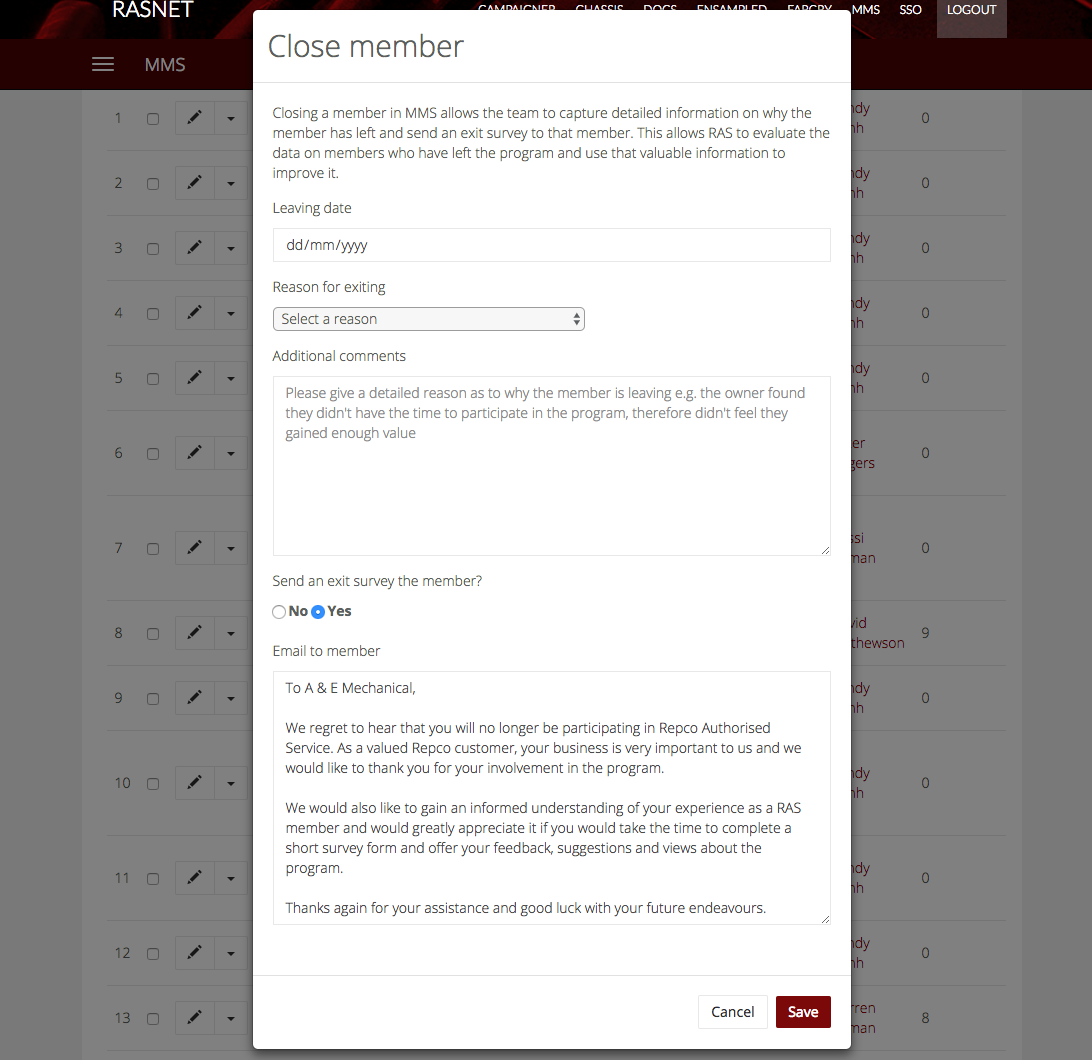
- Select the leaving date. This can be a date in the future. If it is, the member will remain active until that date at which point MMS will automatically make them inactive. When members are made inactive, emails are automatically sent out to the wider team who support the RAS program notifying them a member was closed.
- Select the reason for exiting.

- Add as much detail in your additional comments as possible. This field requires at least 100 characters to save.
- You can also send an exit survey to the member. In most instances, a survey should be sent. You can alter exit email content if required. This email will contain a link to an exit survey to gather more information from the exiting member. A copy of the email will be sent to the person closing the member and the outgoing member themselves. The results of this survey will be emailed to the National Manager.
NOTE: You can always send this email at another time if the day you close them in MMS isn't appropriate. All you need to do is come back to the member record, click the down arrow and select resend exit survey. You will be shown a pop-up to edit the email contents before sending.
Updating a member's subscription level
To update a member's subscription level you need to edit them in MMS. This will flow through to AP should the member have it.
 Authorised and Premium members can also select from the plus bundle or select individual services they may want.
Reopening a member
Should a member choose to return to the RAS program they can simply be reopened. All you need to do is come back to the member record, click the down arrow and select reopen member and they will again be active.

By default you can only see active members so you need to add the `is active? = no` filter to see closed members.
Rolling over a member
Some members sell their business and the new owners retain membership, which is known as a rollover in MMS. When a member is rolled over in MMS they're given a new member record so that the new owners are distinct from the previous owners. The complete process is summarised here;
- The original member is closed.
- Relevant information from the original member is copied to a new prospect.
- The prospect is updated with new information where appropriate.
- The prospect is converted to a complete member.
This process also allows us to properly capture the information we require for membership reporting. To rollover a member;
- Navigate to the Members model.
- Find the member you are closing.
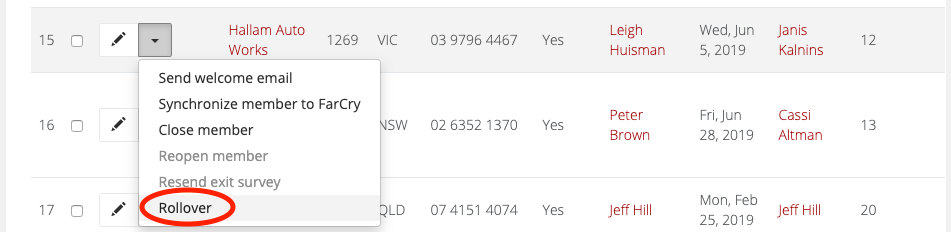
- Click the dropdown arrow next to their record then select Rollover:
- You'll now see the Rollover member form. Please provide all required information.
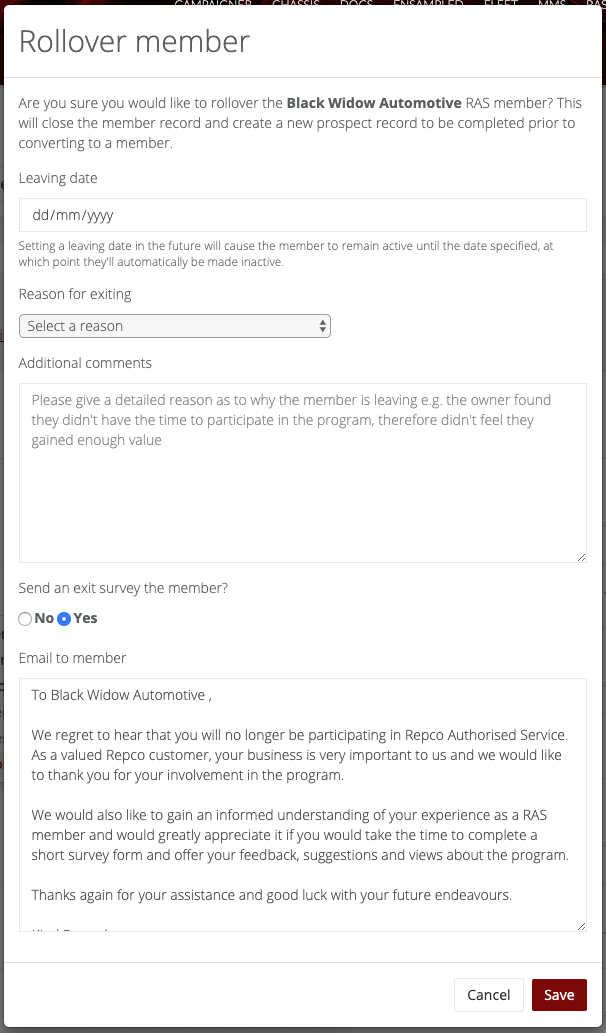
- With everything complete, click the Save button.
- You'll now be redirected to the new Prospect record to continue the roll over process. If the leave date was set to a date in the future the Member record will remain active. If the leave date was set to the current day or a date in the past, the Member record will be closed.
- When the Prospect record has been updated accordingly, follow the steps to convert the prospect to a new member record.
