Managing procedure PDFs
While the primary content of a Fleet procedure should be entered directly, you can link to external files such as PDF files containing specific processes or forms to be completed during servicing.
Goals
Uploading a PDF
- Navigate to https://fleet.repcoservice.net/ and login.
- Click on Customers:
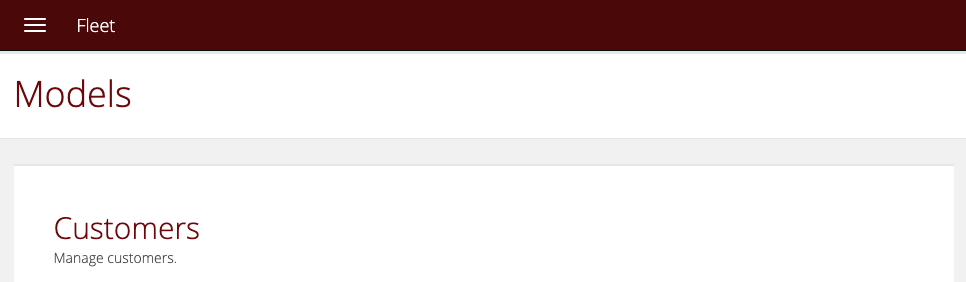
- Click the Edit button (pencil icon).
- Scroll down to the Fleet details section and click the Upload a PDF button:
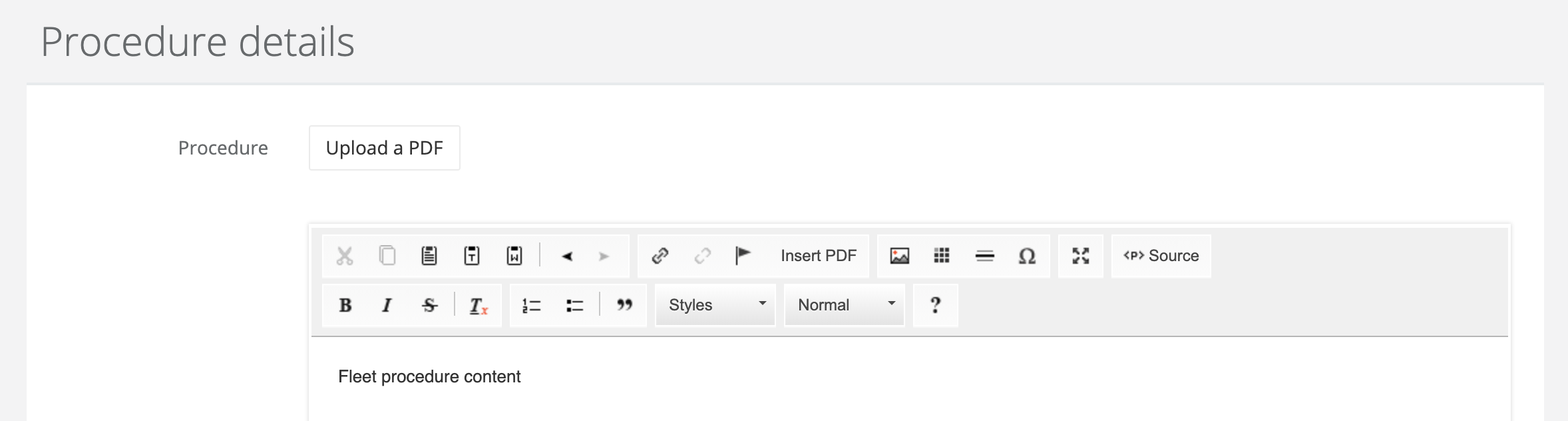
- In the My Files modal that appears click the Browse button:
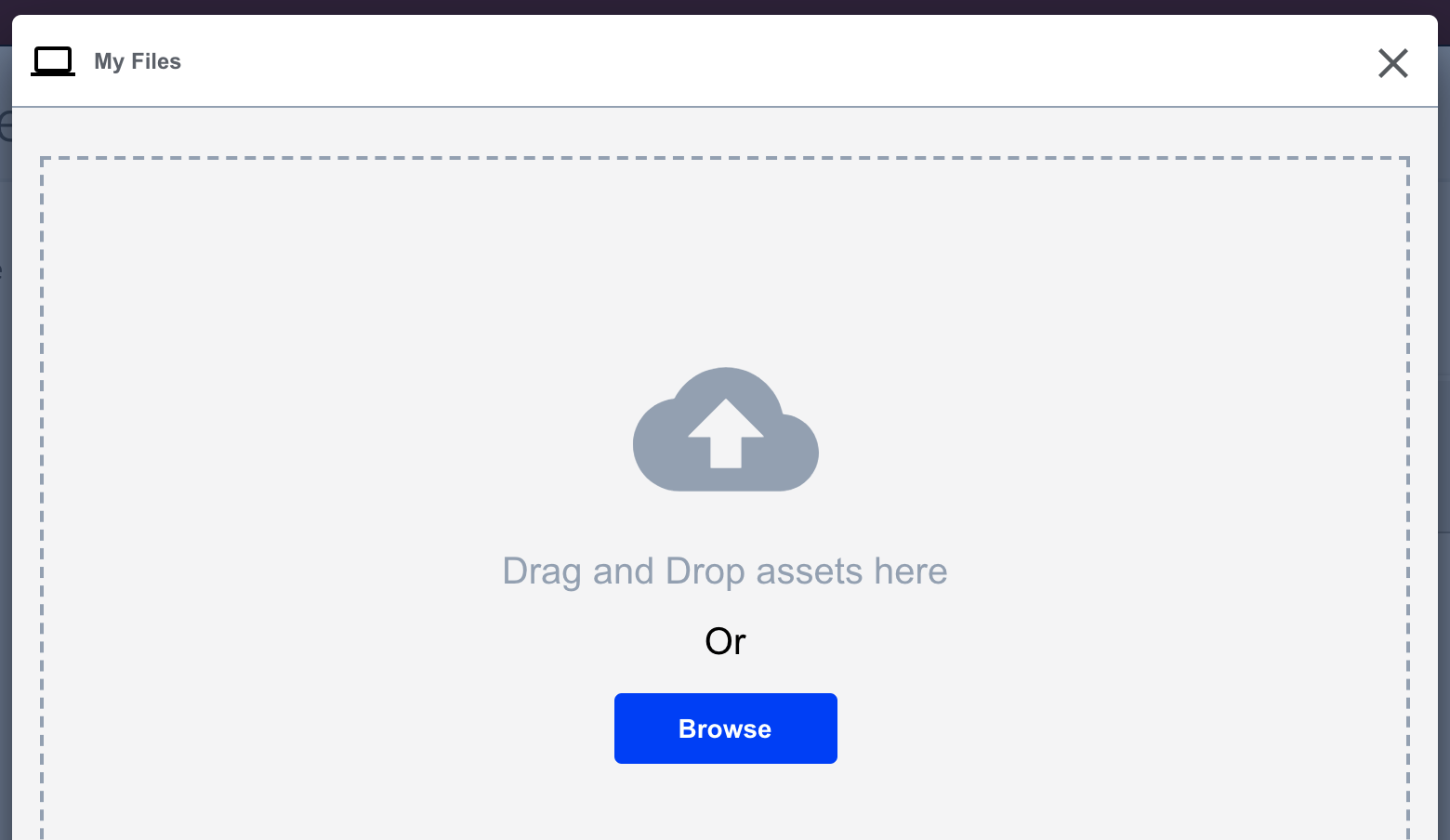
- Navigate the folders and files on your computer to select the correct PDF to upload.
- Once the PDF has uploaded click the Done button:
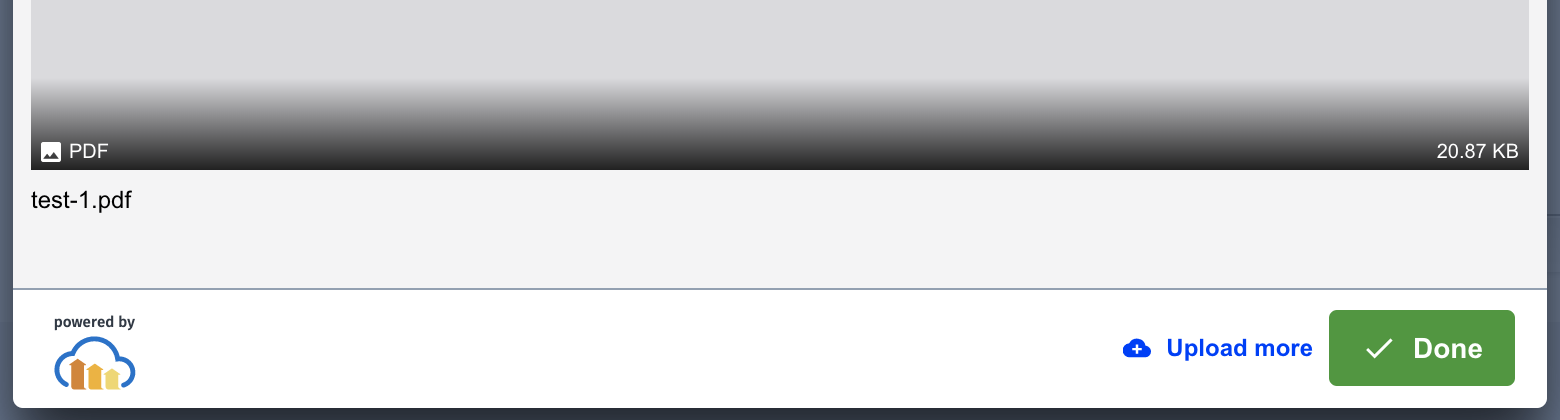
- With that, you should notice the PDF you uploaded just beneath the Upload a PDF button:

- Click the Save button at the bottom of the screen to complete the updates.
Insert a link to a PDF
These instructions start on the Edit screen for a customer.
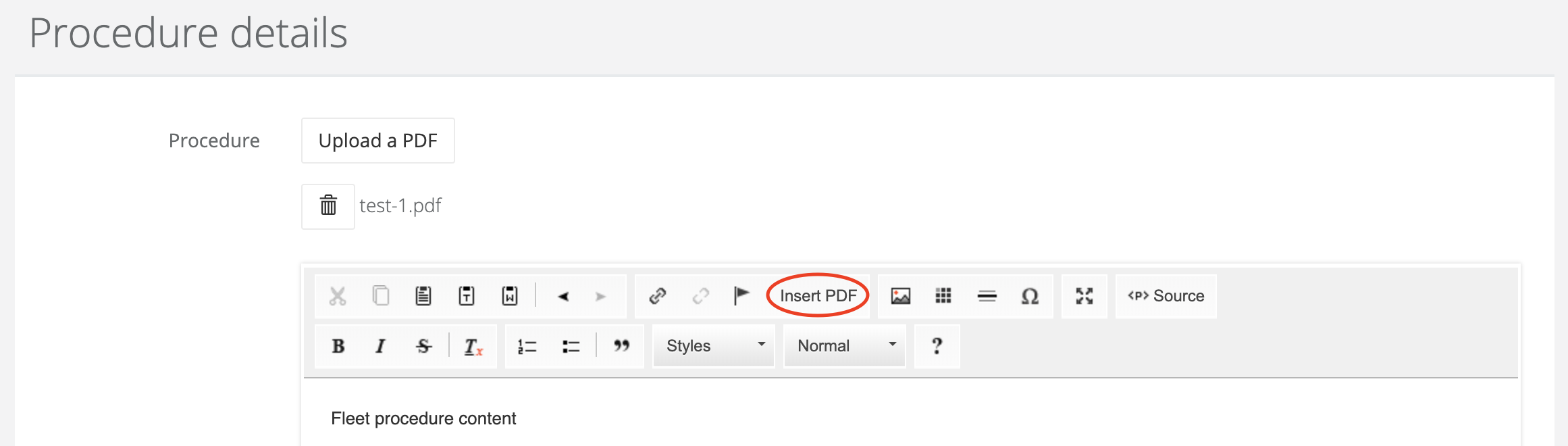
- Scroll the Procedure details section and click in the Insert PDF button in the WYSIWYG toolbar:
-
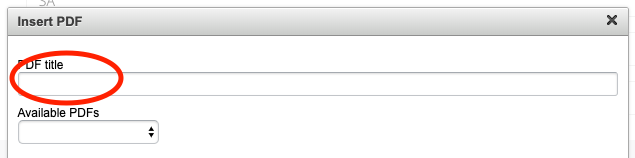
In the Insert PDF modal that appears, provide the text for the link text that will appear in the procedure in the PDF title text field:
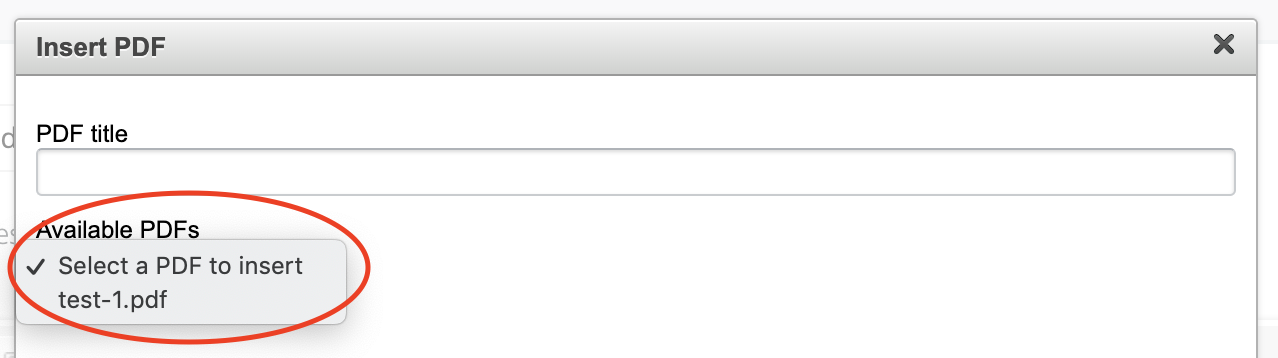
- In the Insert PDF modal that appears, choose the PDF you'd like to link to from the Available PDFs select list:
-
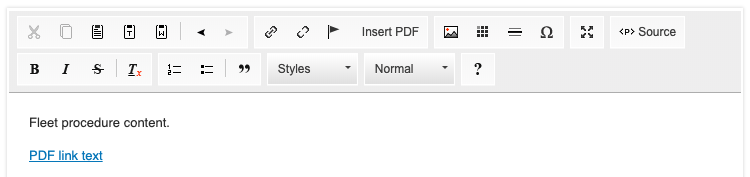
With everything complete, click the OK button. You then see a link to the PDF in the WYSIWYG content area:
-
Click the Save button at the bottom of the screen to complete the updates.
Remove a PDF
These instructions start on the Edit screen for a customer.
- Scroll down to the Procedure details section to review the list of uploaded PDFs and the WYSIWYG content:
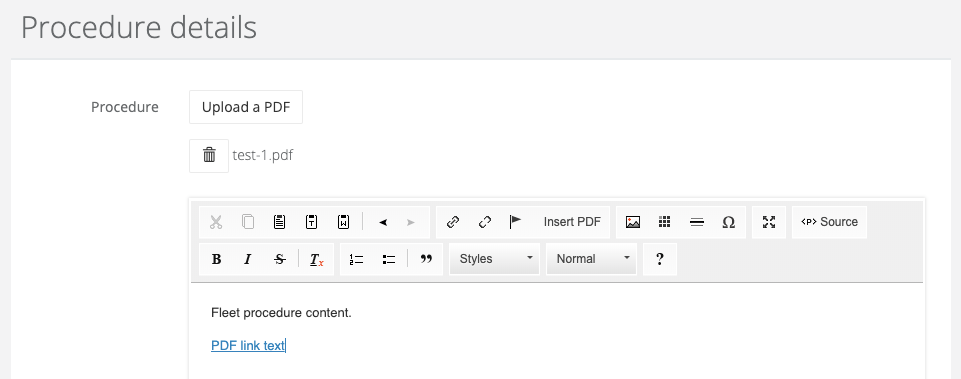
- Start by removing the link to the PDF you want to delete in the WYSIWYG content area.
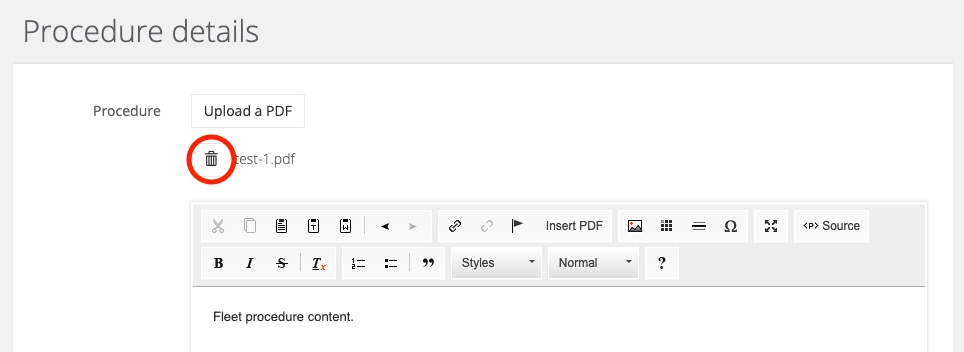
- Then find the PDF you want to remove in the PDF list and click the trash icon:
- Click the Save button at the bottom of the screen to complete the updates.
