Creating a customer
It's quick and easy to on-board new customers to the Fleet portal.
Goals
- Confidently setup a new customer in Fleet.
Getting started
You'll need to follow three steps:
- Create a customer.
- Create at least one user.
- Provide the customer with access details.
Create a customer
- Navigate to https://fleet.repcoservice.net/ and login.
- Click on Customers:
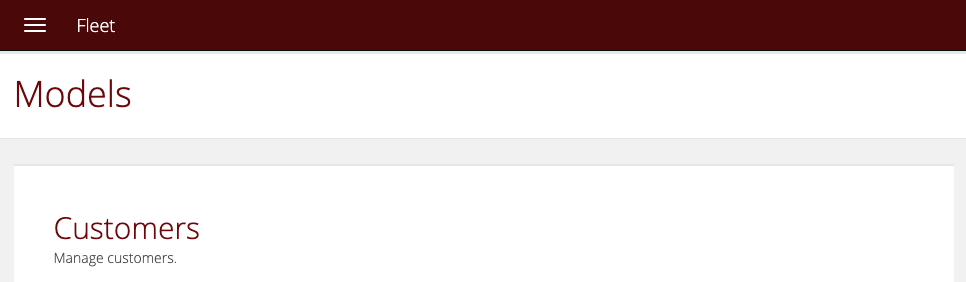
- Click the Create a new customer button:

- On the create new customer page, you will at a minimum need to fill out any details that are mandatory, these are marked with a *:
- Make sure you set them to Active.

- Click the Save button.
- Make sure you set them to Active.
Create a user
- Use the menu to navigate to Users.
- Click the Create a new user button.

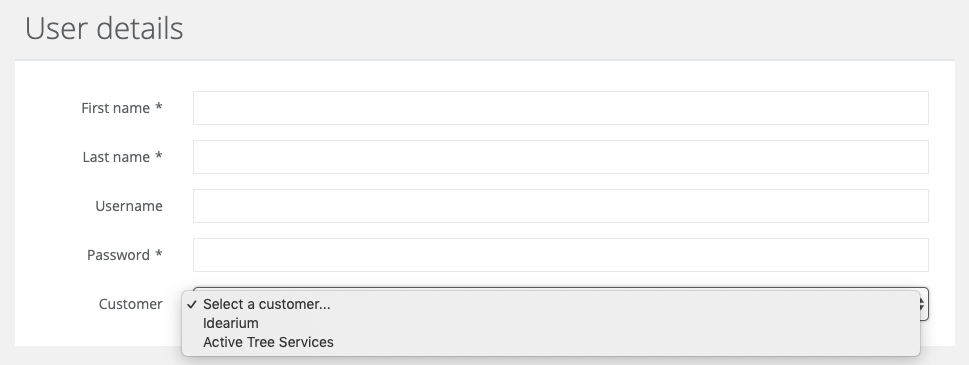
- On the create new user page, you will at a minimum need to fill out any details that are mandatory, these are marked with a *:
- Make sure you assign the user to the customer you just created.
- Make sure you set them to Active.
- Click the Save button.
- Make sure you assign the user to the customer you just created.
Provide the user with access details
With everything set up, you can now provide the Fleet customers with a link to https://fleet.repcoservice.net/ and their username and password.
Follow best practice security with password sharing and ensure you don't share a URL, username and password in the same place. For example, you might send the URL and username in an email, and the password in an SMS message.